Sunday, July 1, 2018

Confusion in a land with no digital manners

We shouldn't be shocked when adults with no communication skills behave as such.

We've started summer vacation here in the U.S., which means every couple of days right around 6:45am my phone rings. It's the young woman who lives about a mile and a half away, looking to talk to my middle daughter about the things they are going to do together today. This call always starts and ends the same way — with my frustration at the lack of phone etiquette on the other side of the phone at its peak.

This young woman never introduces herself, is frequently silent if she is concerned the tone of my "hello" is not entirely pleasant, and if my daughter isn't around to chat the other end of the call ends immediately. As someone who was raised with phone etiquette as a daily lesson in my youth, these calls make my teeth hurt from all the grinding. Which is a shame, because in person this young woman is nothing but polite and friendly.

I found myself thinking back to these interactions as I read this article about a frustrating new trend in the hiring world called Ghosting. People will go through the entire hiring process, develop a rapport with the person trying to hire them, and then cease all communication just as the offer letter is being drafted for signature like a bad breakup. And it is exactly like a bad break-up, because that's the only thing close to a guilt-free end of communication many of these people have ever known.

Those basic set of social constructs for how messages on any platform are to be generally treated in a polite environment has never really existed.

One of the more curious take-always I had from Google I/O was on how difficult it is to predict (and thereby communicate behavior in the new Digital Wellbeing effort coming to Android P. Socially, we have no codified etiquette for how to communicate online. I've worked in offices where not responding to every single email was seen as a sort of offensive behavior, but I've also worked in offices where emails were throwaways that required no confirmation of receipt. It was just assumed that you got and understood the message immediately, which raised several of its own problems. We joke about these same problems in social messaging environments, especially people who get upset when you don't reply to a message right away and become angry or insecure because what else could you possibly be doing with your time right now. Those basic set of social constructs for how messages on any platform are to be generally treated in a polite environment has never really existed. Some people imported their behaviors from elsewhere, but the same rules never really applied.

As a result, what some consider basic etiquette in professional conversation is tossed out the window as the generation raised in this basically standards-free communication environment enters the workforce in larger numbers.

The technology itself is partially to blame in this as well. Messaging as a platform has evolved so rapidly over the last couple of years, any concrete set of social rules wouldn't really apply anyway. Five years ago, tossing a few emoji into the report I send my boss at the end of each week would have gotten my Millennial self mocked and taken far less seriously. Today, an email from me without emoji or GIFs would indicate to several of the people I work with that something was wrong or that I was in a hurry to be out of this conversation. There are dozens of other examples, but it all comes down to what is generally considered "appropriate" behavior within the smaller group instead of the codified social construct many of us grew up with when it came to the rules of the home phone. Don't even get me started on punctuation in messages, or my younger sister's incessant use of lol as punctuation.
Weirdly, this is one of the things I like most about my kids using the Republic Relay this past week. No screen means no texting, which means my kids have to actually talk like they are using a phone and demonstrate some of the skills they so infrequently are asked to use these days. Even in this activity, the discrepancy in use between my three children has been fascinating. My middle daughter loves to sit on the phone and talk about everything, whereas my oldest daughter gets off the phone as quickly as possible and prefers to catch me up on details in person or over text message. There's no right or wrong way to use these adorable little hockey pucks, but it's a fascinating microcosm of the kinds of things that separate what we consider polite and impolite forms of communication in the different spaces of our lives.

This is a fascinating week for the Android Central team, and indeed Mobile Nations as a whole. Our company is spread to the four corners, which means many of us are celebrating Canada Day this week while many others are preparing for Fourth of July. Some of us are spending this holiday in service to our country, while others preparing for gatherings and barbecues and probably a colorful explosion or two. While you celebrate, whatever you celebrate, give some thought to the way you view those who don't communicate in the exact same way you do.

Some final thoughts for your Sunday:

That's it for me, time to fire up the smoker and get some burnt ends going. Have a great week!


from Android Central - Android Forums, News, Reviews, Help and Android Wallpapers https://ift.tt/2MEhIpk
via IFTTT

Must read: top 10 Android stories

This week we reviewed the Vivo Nex and BlackBerry Key2, found out when the Galaxy Note 9 is launching, and got our first (unofficial) look at the Google Pixel 3! Here's what you need to know about this past week in Android.

Who wants to win an LG G7 ThinQ?

This week, one lucky reader will win a brand new LG G7 ThinQ. Enter this week's Sunday giveaway for your chance to win!

10 Android stories we handpicked for you

Vivo Nex review: Frustratingly imperfect, undeniably desirable Our Vivo Nex review reveals why this lust-worthy device should remain an object of desire rather than become the phone in your pocket.


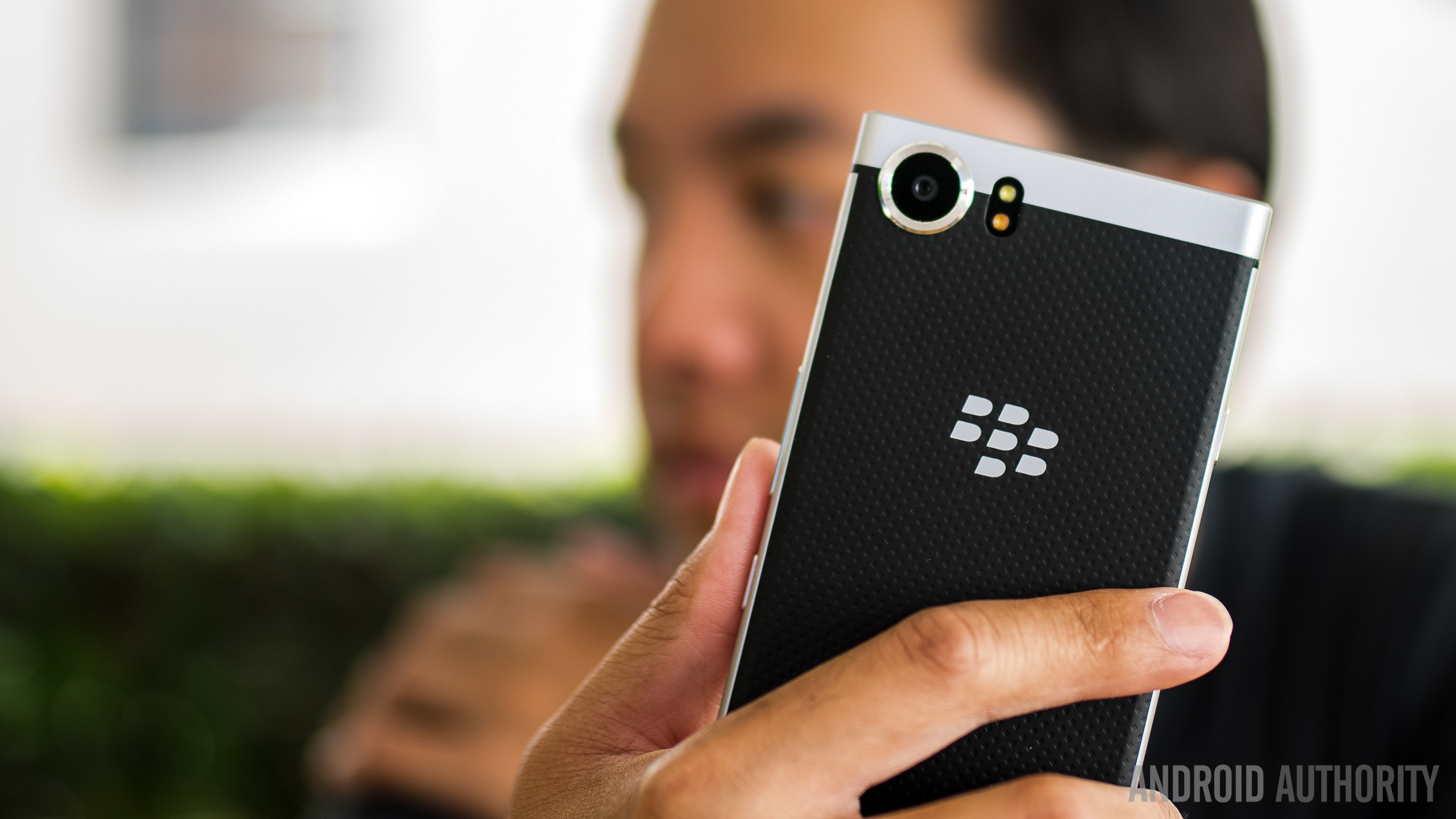
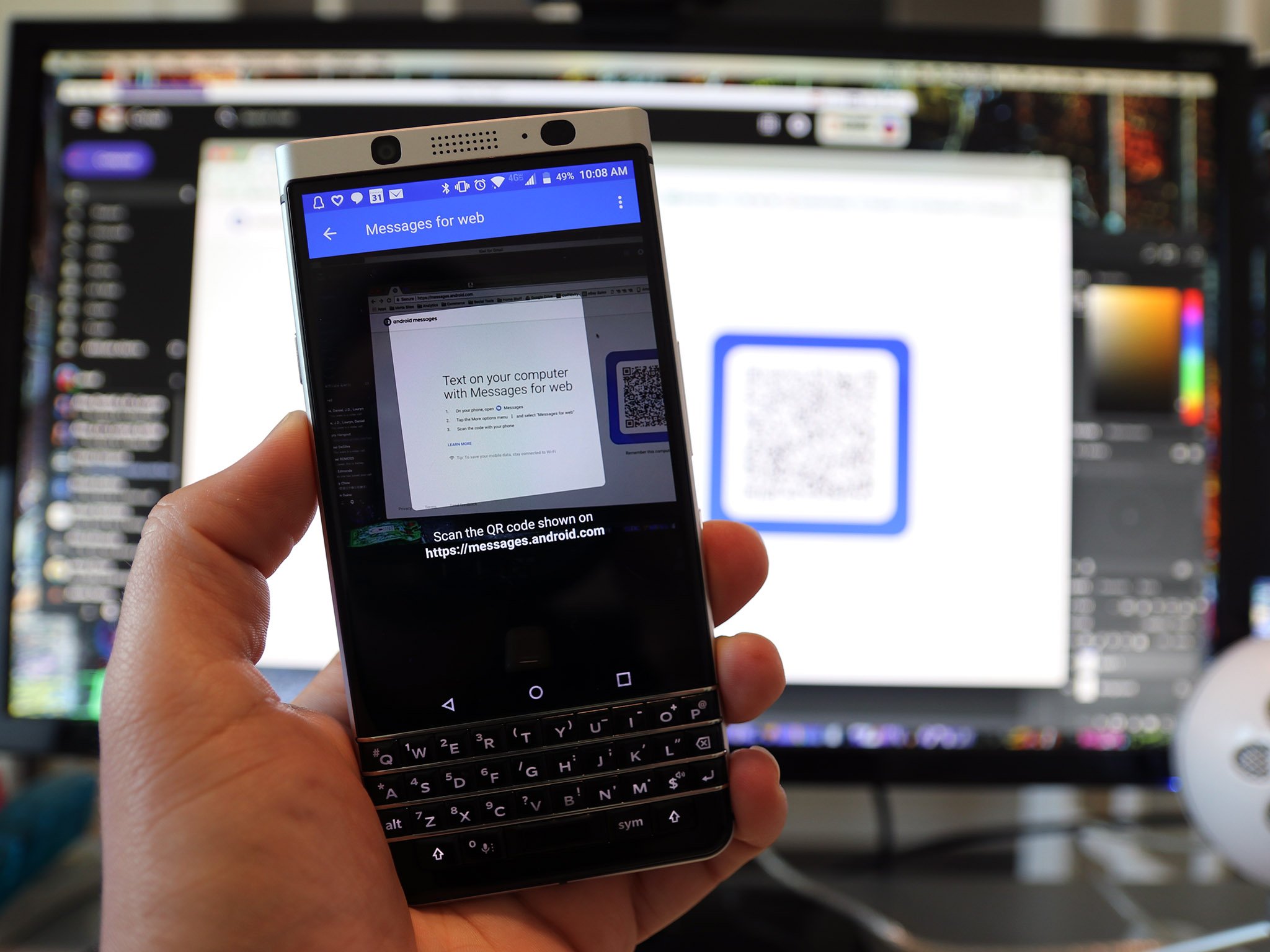
BlackBerry Key2 review: Convenience is key BlackBerry set out to create a phone for people who value productivity over multimedia, and uniqueness over monotony. This is the BlackBerry Key 2 review.


Samsung Galaxy Note 9 will launch August 9 The Samsung Unpacked event where the Samsung Galaxy Note 9 launch will occur is happening on August 9, 2018.


Google Pixel 3 and Pixel 3 XL 360-degree render videos appear online OnLeaks and mysmartprice have published CAD render images and videos of the rumored Pixel 3 and Pixel 3 XL — come take a look!


10 best new Android games from June 2018 Android gaming is getting bigger and there are always awesome, new games coming out! Check out our list of the best new Android games from the last month.


The race to 100%: How screen-to-body ratios changed over the years The 2007 BlackBerry Curve had a screen-to-body ratio of 30.1 percent. Oh how things have changed.


Samsung Galaxy S10: All the rumors in one place Here are all of the rumors and stories surrounding the Samsung Galaxy S10, the next version of the company's flagship phone series.


Google's endless app overlap: What's going on? Google may be great at organizing the world's information, but it still kinda sucks at organizing its own apps.


Worst phone ever? Team AA reveals their handset horror stories We've gone through plenty of devices, but which ones made for the worst smartphone experiences?


BBK's crazy month shows phones can still be fun and innovative Between the OnePlus 6, Vivo Nex, and Oppo Find X, BBK's brands are showing the industry how to innovate.


Don't miss these videos

Watch more Android videos on our YouTube channel.

More hot news

From our network

Join our newsletters!

Join over 200,000 subscribers for the latest tech reviews, hot deals, and exciting giveaways.
We guarantee 100% privacy. Your information will never be shared. Sign up now and get FREE access to our upcoming exclusive AA Insiders Club:


from Android Authority https://ift.tt/2KmWpfF
via IFTTT

LG G7 ThinQ international giveaway!

Welcome to the Sunday Giveaway, the place where we giveaway a new Android phone each and every Sunday.

A big congratulations to last week's winner of the Google Pixel 2 XL and Pixel Buds giveaway: Ron M from Florida, USA.

This week we are giving away a brand new LG G7 ThinQ, courtesy of the Android Authority App!

If you're looking for the best way to stay up to date with AndroidAuthority.com, look no further than the AA App for Android. Available for free in the Google Play Store, the official AA App is the fastest way to get all the latest news, rumors, tips and tricks, and device reviews on your mobile device.

It's fast, looks good, and gives you breaking Android news at your fingertips — what more could you want?

The new LG G7 ThinQ is an amalgamation of last year's V30 and G6… with a little iPhone X thrown in.

On top of that super bright 6.1-inch display, you'll find the oh-so-2018 notch cutout. If you aren't a fan, you can "turn off" the notch in the settings menu.

LG phones have always provided a solid audio experience, and the G7 ThinQ is no different. The phone actually uses its inner space as a resonance chamber to boost bass and deliver all-around louder audio. It also comes with a 32-bit Hi-Fi Quad DAC and DTS:X 3D Surround Sound support.

This phone also comes with some of the best specs you can find on any smartphone out there: a Snapdragon 845 SoC, dual 16MP wide-angle cameras, as well as IP68 and MIL-STD 810G certifications. As an added bonus, there's also a dedicated Google Assistant button that lets you talk to the voice assistant like a walkie-talkie. It's pretty neat.

To learn more about the LG G7 ThinQ, check out our related coverage below:

Enter the giveaway here

LG G7 ThinQ international giveaway!

Don't miss: Best Android phone (June 2018) giveaway | Jaybird Run international giveaway

Winners gallery

Terms & Conditions
  • This is an international giveaway (except when we can not ship to your country.)
  • If we can not ship to your country, you will be compensated with an online gift card of equal MSRP value to the prize.
  • We are not responsible for lost shipments.
  • We are not responsible if your giveaway prize malfunctions.
  • You must be age of majority in your country of residence.
  • We are not responsible for any duties or import fees that you may incur.
  • Only one entry per person; please do not enter multiple email addresses. We will verify all winners and if we detect multiple email addresses by the same person you will not be eligible to win.
  • We reserve all rights to make any changes to this giveaway.
  • This giveaway is operated by Android Authority.
  • The prize will ship when it is available to purchase.

More: Android Authority international giveaway FAQs


from Android Authority https://ift.tt/2IGcqHP
via IFTTT

Bixby guide: Features, compatible devices, best commands

Samsung Bixby on Samsung smartphone

The Samsung Bixby digital assistant lets you control your smartphone with voice commands. You can open apps, check the weather, play music, turn on Bluetooth, and much more. You'll find everything you need to know about Google Assistant's biggest rival below, including how to access it, the features it offers, and which devices it's available on.

Which devices and languages does Samsung Bixby support?

Unlike Google Assistant, Samsung Bixby is exclusive to Samsung devices. It debuted on the Galaxy S8 series and is also available on the Galaxy S9, S9 Plus, and Galaxy Note 8. You'll also find the digital assistant on the Galaxy Note FE and the South Korean variant of the Galaxy A7 (2017). However, these two devices don't sport a dedicated Bixby button. Bixby on the Galaxy A7 is also very limited, as it lacks voice control.

Bixby-powered smart speakers, TVs, and other products are expected to launch this year.

In addition to smartphones, Bixby runs on Samsung's Family Hub 2.0 refrigerators and a couple of other devices. The digital assistant is expected to come to a lot more products this year, including smart speakers and TVs.

Bixby understands English, Korean, and Mandarin. For comparison, Assistant supports 11 languages, expected to reach 30 by the end of the year.

What can Samsung Bixby do?

Samsung Bixby, Bixby Home

Bixby Voice

There are three parts to Samsung's digital assistant: Bixby Voice, Bixby Vision, and Bixby Home. The most interesting and useful one is Bixby Voice, which lets you use voice commands to get stuff done. It works with all Samsung apps and a few third-party apps, including Instagram, Gmail, Facebook, and YouTube.

With Samsung Bixby Voice, you can send text messages, check sports scores, turn down the screen brightness, check your calendar, launch apps, and more. The digital assistant can also read out your latest messages and can be customized to speak in a male or female voice. The feature can also handle more complicated two-step actions like creating an album with your vacation photos and sharing it with a friend. According to Samsung, the digital assistant supports more than 3,000 voice commands. This means that anything you can do via touch on your Samsung phone, you can probably do with your voice.

Bixby Voice also supports quick commands, allowing you to perform multiple actions with a single phrase. Instead of telling Bixby to open the camera app, change the mode to super slow-mo, and start recording, you can pre-program all these steps as a quick command and launch it by saying "slow-mo."

Samsung Bixby, Bixby Voice

Bixby Vision 

The second part of the digital assistant is Samsung Bixby Vision, which is basically Samsung's version of Google Lens. The feature is built into the camera and gives you relevant info depending on what you're pointing it at. There are eight modes to choose from:

  • Place — Point the camera at a place or landmark and Bixby will tell you what it is and provide some additional info like opening hours.
  • Shopping — When you come across an interesting item like a chair, Bixby can help you buy it. Point the camera at the item you're interested in and the digital assistant will direct you to an online retailer selling it (or similar products).
  • Text — Translate foreign languages (signs, restaurants menus, and more) and convert words on paper documents into editable text.
  • Food — Check how many calories are in your food and its nutrition facts.
  • QR Codes — Quickly scan QR codes without having to open a separate app.
  • Wine — Scan a wine label to check out online reviews and see what food it goes best with.
  • Image — Find similar images to the ones you've taken.
  • Makeup — Try on makeup virtually and buy the products you're interested in.

Some modes, like Makeup and Shopping, are specific to certain regions, so they might not show up on your device. They don't all work brilliantly, either. Our very own Jimmy Westenberg tested out Bixby Vision on a Galaxy S9 and ran into a few problems. The Food mode worked half the time, and the translation option wasn't great either — so just don't expect everything to work exactly as advertised. Given time, the service will improve, but it can only do so if users are providing the algorithms with the data it needs to get better.

Samsung Bixby, Bixby Home

Bixby Home

The last part of Samsung's digital assistant is Bixby Home, which lives on your home screen. It's similar to Google Feed and HTC Blinkfeed, showing social media updates, trending YouTube videos, the weather forecast, reminders, and so on. You can customize it to only display the info you're interested in. You can also change the order of the Bixby Home cards by moving the ones that matter to you most to the top.

How to access Samsung Bixby

Let's start with Samsung Bixby Home. You can access it by pressing the dedicated Bixby button on the left side of a device that has one or by swiping right on your home screen on any phone that supports Bixby. If you keep pressing the button by accident, you can disable it — but you can't remap it to something else like Assistant.

Read next: How to disable Bixby on the Galaxy S9

The same button that launches Samsung Bixby Home can also launch Bixby Voice. Press and hold it, say your command, and then release it. It's similar to using a walkie-talkie. Alternatively, you can activate it by saying, "Hi Bixby," but you have to enable this ability first by launching Bixby Home and going to More Options > Settings > Voice wake-up.

The easiest way to launch Bixby Vision is to open the camera app and tap the Vision icon in the viewfinder. You can also bring up Bixby Voice and say, "Open Bixby vision."

What commands does Samsung Bixby understand?

Samsung Bixby, Bixby Voice

Samsung Bixby understands thousands of commands. We won't list them all in this post, but here are some of the more useful ones:

Calls and texts

  • Hi Bixby, call Andy.
  • Hi Bixby, video call Paul.
  • Hi Bixby, send a text to Adam.
  • Hi Bixby, show recent call history with Jimmy.
  • Hi Bixby, show Andrew's contact information.
  • Hi Bixby, call the most recent number.
  • Hi Bixby, show missed calls.
  • Hi Bixby, show the call duration until now.
  • Hi Bixby, block the last number called.
  • Hi Bixby, add the last number called as a new contact.
  • Hi Bixby, delete all missed calls.
  • Hi Bixby, add John to speed dial 2.
  • Hi Bixby, show me the Contacts tab.
  • Hi Bixby, move all my contacts to Secure Folder.
  • Hi Bixby, show Quick decline messages.

Camera

  • Hi Bixby, open Camera.
  • Hi Bixby, change camera mode to panorama.
  • Hi Bixby, take a picture in panorama mode.
  • Hi Bixby, take a picture.
  • Hi Bixby, record a video.
  • Hi Bixby, turn on the front camera.
  • Hi Bixby, turn on flash.
  • Hi Bixby, turn on HDR.
  • Hi Bixby, show me pictures.
  • Hi Bixby, apply deep filter.
  • Hi Bixby, turn on Tracking AF for the rear camera.
  • Hi Bixby, change Grid lines to 3 by 3.
  • Hi Bixby, take a picture and share it.
  • Hi Bixby, adjust the shutter speed of Pro mode.
  • Hi Bixby, select 10 seconds for Timer and take a picture.

Messages

  • Hi Bixby, open Messages.
  • Hi Bixby, show me the most recent message.
  • Hi Bixby, pin the conversation with the most recently received text.
  • Hi Bixby, forward the most recent text to David.
  • Hi Bixby, share the most recent text.
  • Hi Bixby, delete the most recent text.
  • Hi Bixby, show me the texts I received today.
  • Hi Bixby, read me the texts I received today.
  • Hi Bixby, search texts with the keyword Adam.
  • Hi Bixby, send a text that I'll be late in the conversation with Jimmy.
  • Hi Bixby, delete the text that says See you.
  • Hi Bixby, take a picture and send it to the conversation with John.
  • Hi Bixby, send Jane's contact info to Andrew.
  • Hi Bixby, delete all message drafts.
  • Hi Bixby, set message font size to the maximum.

Reminders

  • Hi Bixby, remind me to take medicine at 3 pm.
  • Hi Bixby, show me my most recent reminder.
  • Hi Bixby, show me my completed reminders.
  • Hi Bixby, delete all of my reminders.
  • Hi Bixby, set all of my reminders as completed.
  • Hi Bixby, change the color of my most recent reminder to blue.
  • Hi Bixby, add my most recent picture to the most recent reminder.
  • Hi Bixby, complete this reminder.
  • Hi Bixby, save my parking location.
  • Hi Bixby, delete the Shopping reminder.

YouTube

  • Hi Bixby, open YouTube.
  • Hi Bixby, show me the videos trending.
  • Hi Bixby, show me my subscriptions.
  • Hi Bixby, show me all channels I've subscribed to.
  • Hi Bixby, record a video and upload it.
  • Hi Bixby, search for Android Authority.
  • Hi Bixby, add this video to my favorites.
  • Hi Bixby, connect to my TV.

When is version 2.0 coming?

Samsung Bixby, Bixby Vision

In October 2017, Samsung announced Bixby 2.0, an upgraded version of its digital assistant, but it's not available yet. The latest rumor suggests it will debut on the Galaxy Note 9, which Samsung will likely announce in August, although nothing has been confirmed yet.

Editor's Pick

According to Samsung, the new version of Bixby will be a "fundamental leap forward for digital assistants." It will be more personal and feature enhanced natural language capabilities for more natural commands and complex processing. More importantly, it will be available on a lot more devices. Samsung plans on introducing Bixby-powered TVs, smart speakers, and tons of other home appliances.

What's more, Bixby 2.0 will be open, allowing other developers to use it in their products. The tech giant has already launched a private beta program, making the Bixby SDK available to select developers. It will be available to all developers eventually, but there's no word on when.


Bixby looks promising on paper, but still doesn't always work as advertised. It didn't have the smoothest rollout, but it has improved significantly since its debut. Overall, Google Assistant is still the superior option in my opinion, although things could change with the official launch of Bixby 2.0.

Any thoughts or comments? Leave them down below in the comment section.


from Android Authority https://ift.tt/2tUC2eu
via IFTTT

Android P update tracker: Here are all the phones that run Android P

android 9.0 update

The next major version of Android, Android 9.0, is slated to arrive sometime in Q3 2018. Before that, you can actually test out a beta build of the software if you have a compatible smartphone.

Below, we'll detail everything you need to know about the Android P update schedule, which devices are compatible with Android P, how to install Android P updates, and more.

List of compatible devices

Android beta releases have traditionally only been available for Google's Pixel and Nexus phones, but that changed this year with Project Treble. Now the Android P beta is available for all of Google's recent Pixel phones as well as 11 phones from other OEMs. The full list can be found below:

In addition, Nokia recently brought the Android P update (beta) to three of its other phones: the Nokia 6.1, Nokia 7, and Nokia 8 Sirocco, though only in China. The beta test is quite small too, so odds are you won't be able to test the Android P update on these phones unless Nokia opens up more slots.

How to install Android P on your phone

There isn't one catch-all method for installing the Android P update on your phone — it all depends on which phone you have. Luckily we have a handy guide for you!

Don't miss: How to install Android P beta: A step-by-step guide

The easiest way to install Android P is to enroll in the Android Beta Program. After just a few clicks, you'll receive a software update on your phone to upgrade you to the latest Android P beta release. You'll need a Pixel phone to enroll in the beta program though.

If you own another phone, you'll want to check out the related guides below:

Current Android P builds for each device

We're currently on the third Android P developer preview (beta 2), but there's no guarantee all the devices listed here will receive every beta update. Take a look at the list below to see which Android P update beta releases are compatible with each phone.

Google Pixel, Pixel XL, Pixel 2, and Pixel 2 XL

All four of Google's Pixel phones can run the third Android P developer preview (beta 2). Since these are Google phones, they'll continue to get new Android P builds first when they're announced.

Essential Phone

Essential rolled out the second Android P developer preview (beta 1) to the Essential Phone. Check out our hands-on article to learn more.

Nokia 7 Plus

The Nokia 7 Plus currently runs the third Android P developer preview (beta 2). HMD Global was quick to release this new build after it accidentally rolled out a phone-breaking update to Nokia 7 Plus users' devices.

OnePlus 6

OnePlus has rolled out the third Android P developer preview (beta 2) to the OnePlus 6. That's a good thing too, as the first developer preview rendered our OnePlus 6 pretty useless.

Oppo R15 Pro

We haven't heard any updates from Oppo about new beta builds, so we can assume the R15 Pro currently runs the second Android P developer preview (beta 1).

Sony Xperia XZ2

The third Android P developer preview (beta 2) is available for the Xperia XZ2. Find out more about Android P on the XZ2 in our hands-on post.

Vivo X21 and X21UD

The Vivo X21 and X21UD currently run the second Android P preview (beta 1).

Xiaomi Mi Mix 2S

Xiaomi has been quiet about releasing new beta builds for the Mi Mix 2S, so we should assume it's running the second Android P preview (beta 1).

Android P update release date and timeline

Google released the first Android P developer preview on March 7, 2018. Following that alpha release, Google revealed the first Android P beta build (developer preview 2) at Google I/O 2018 on May 8, also announcing other OEM devices would be compatible with the Android P beta.

Finally, the third Android P preview (beta 2) released June 6, 2018. This build featured the final APIs and official SDK. You can see an overview of what each build will bring below:

  • Preview 1 (initial release, alpha)
  • Preview 2 (incremental update, beta)
  • Preview 3 (final APIs and official SDK, Play publishing, beta)
  • Preview 4 (release candidate for testing)
  • Preview 5 (release candidate for final testing)
  • Final release to AOSP and ecosystem

As you can see from Google's timeline, the fourth developer preview should arrive at the end of June, and the fifth should arrive at the end of July. The final Android P update release will come sometime at the beginning of Q3 2018.


That's everything we know about the Android P update so far. Did we miss anything? Sound off in the comments!

Next: How stable is the third Android P developer preview?


from Android Authority https://ift.tt/2NeO5fE
via IFTTT

Instagram adds ability to ask questions in Stories

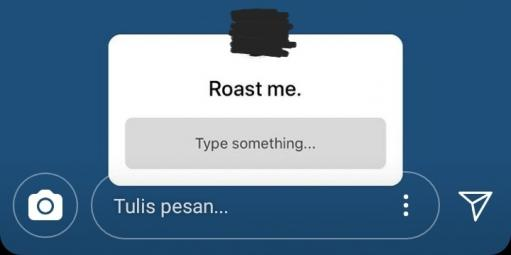
It seems like Instagram is in the news every other day. Highlights include its new Lite and IGTV apps, though there are several Instagram app tweaks sprinkled all throughout. Now, the Facebook-owned company has added the ability to ask questions in its Stories, a feature I'm surprised wasn't already there.

There are already yes/no polls and emoji sliders (yes, that's a thing) that can be used with questions; the new aspect here is open-ended questions.

Read More

Instagram adds ability to ask questions in Stories was written by the awesome team at Android Police.


from Android Police – Android news, reviews, apps, games, phones, tablets https://ift.tt/2NeErtx
via IFTTT

Spotify Lite is a 15MB app that's missing a lot of major functionality [APK Download]

These days, a lot of popular apps have lite versions. Facebook, Facebook Messenger, Instagram, and even Uber now have tiny versions of their main apps, and Spotify is the latest to join in on the fun. Unfortunately, its implementation isn't exactly the greatest, with a lot of crucial features from the main app missing.

Drake somehow got his face onto every playlist's art.

Spotify Lite seemed promising upon first glance.

Read More

Spotify Lite is a 15MB app that's missing a lot of major functionality [APK Download] was written by the awesome team at Android Police.


from Android Police – Android news, reviews, apps, games, phones, tablets https://ift.tt/2NfHYaH
via IFTTT